
How to Add Misc Items
Click the VIN number located in the Vehicle Information box on the Transaction Sheet.
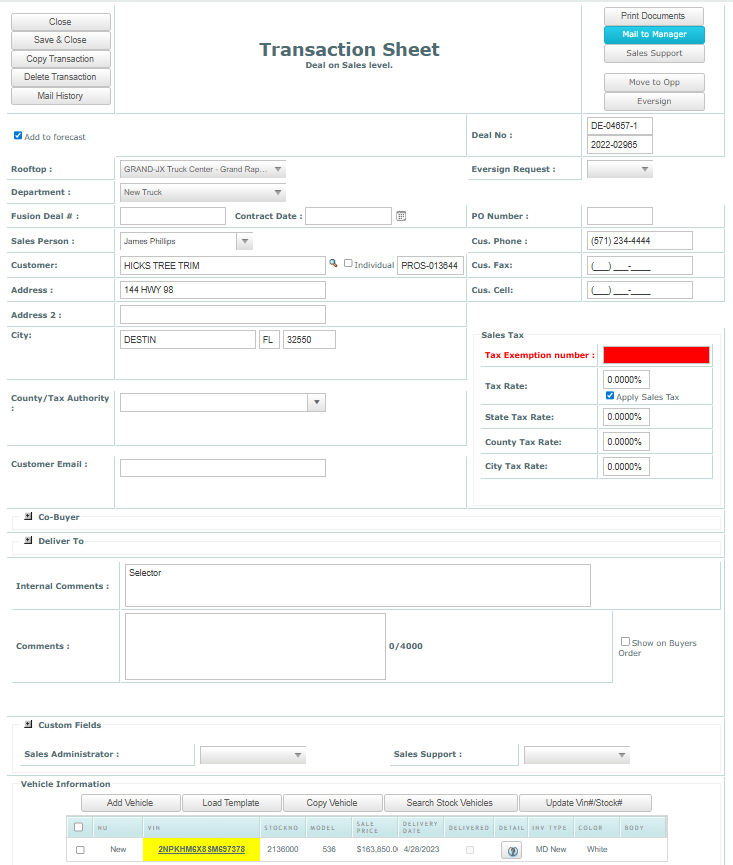
If an add-on is needed, click the Add Misc/FET Exempt/Rebates button within the Vehicle Cost Calculation box.

Click Add New Record.
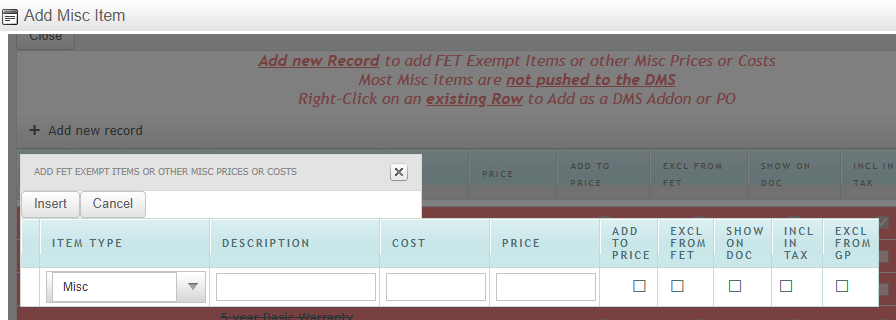
From the dropdown menu, select the appropriate item to charge the customer.
Flooring: Floor plan interest billed separately on the customer invoice.
Warranty: Extended warranty (purchased at time of sale or factory, if shown on factory invoice).
Body: Body installation
Surcharge
Tariff: Government tax (typically listed on the factory invoice, if applicable).
Misc: Any item that needs a separate line on the customer invoice and doesn't fit the other categories.
Enter the amount in the PRICE column ONLY.
A description is REQUIRED for the following misc types:
Warranty
Surcharge
Misc
Check the following boxes:
Add To Price
Show On Doc
Click Insert then Close.
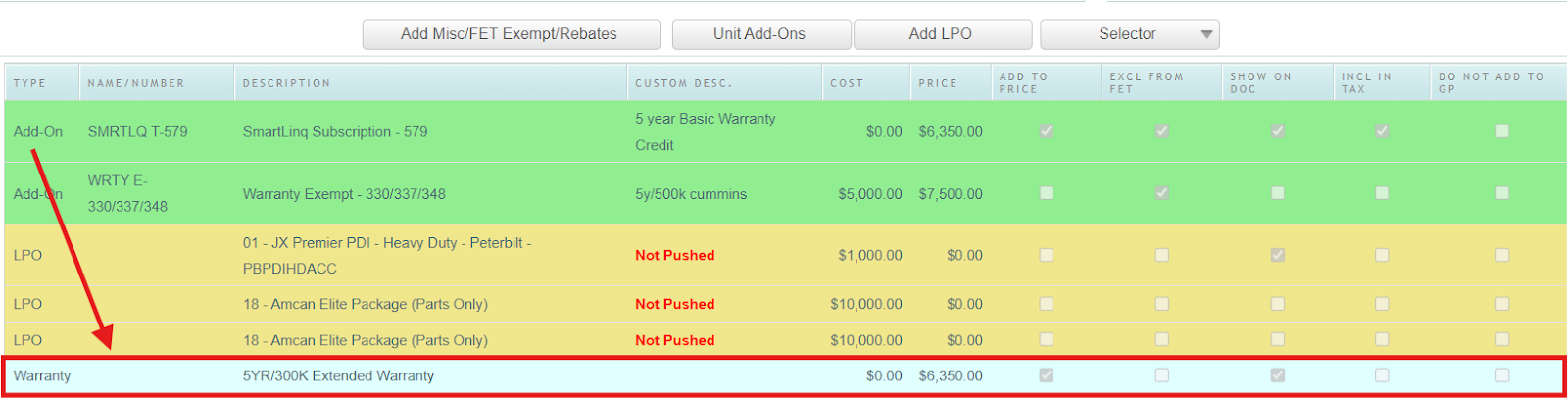
Repeat these steps to add any additional miscellaneous items.
** IMPORTANT GUIDELINES FOR MISC ITEMS **
Misc Items should typically only have an amount in the PRICE column.
The sole exception is when a vendor credit is anticipated, in which case the amount is entered in the COST field as a negative number.
NEVER have amounts in both the PRICE and COST fields simultaneously.