
How to Convert Misc Items to Add-Ons
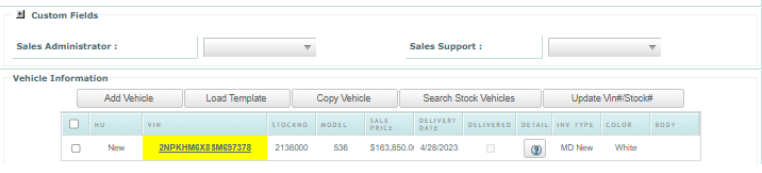
Click the VIN number located in the Vehicle Information box on the Transaction Sheet.
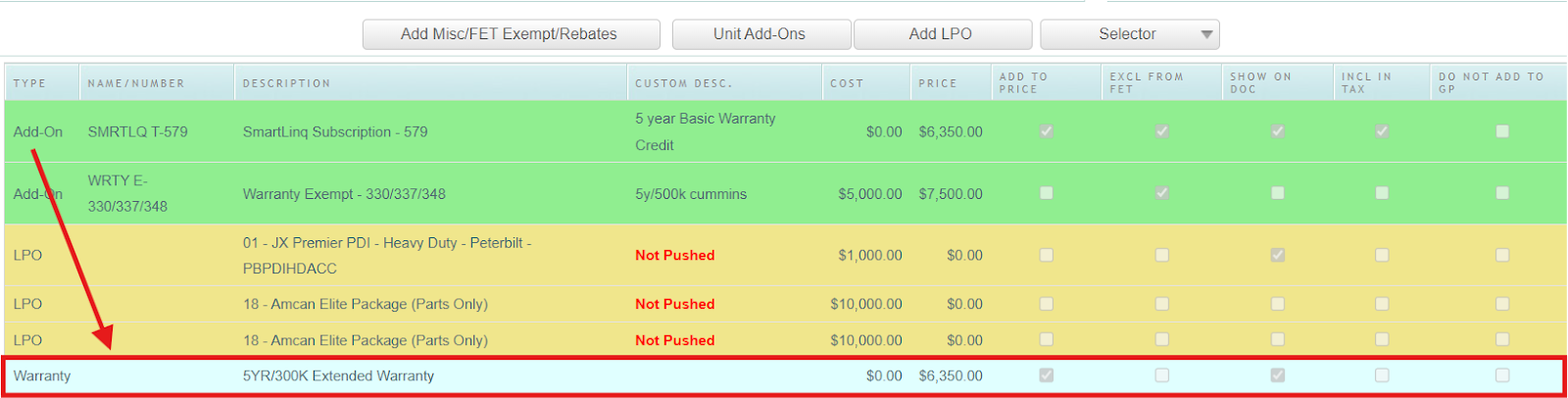
Click the Misc Item (the blue line)
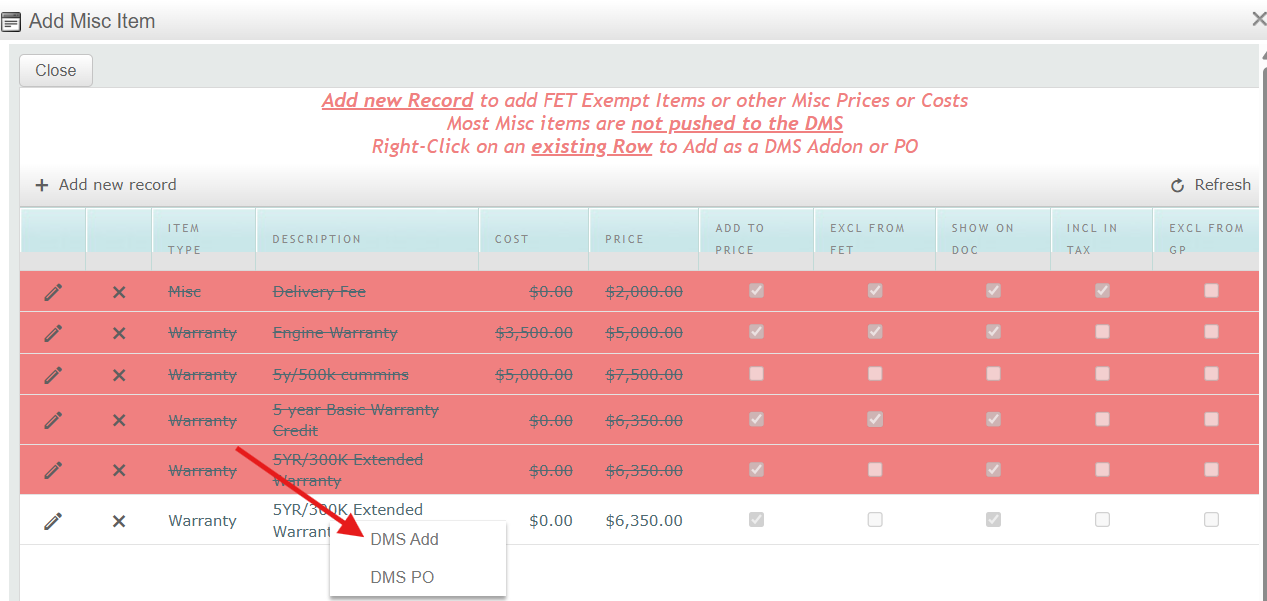
Right click the misc line item and select DMS Add
Choose the add-on from the drop-down menu that matches the type of the miscellaneous item
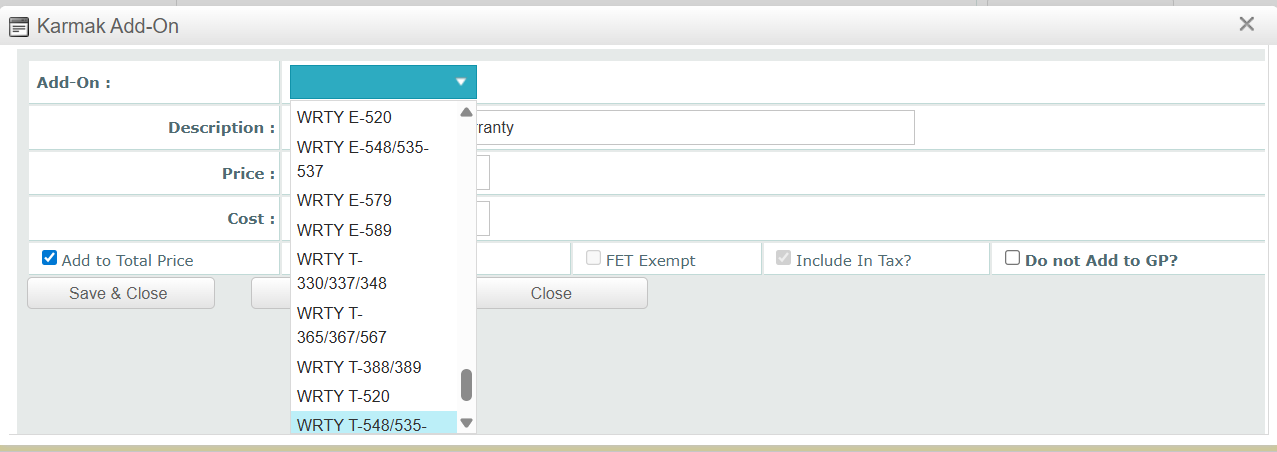
If an appropriate add-on code does not exist, use WE OWE.
Handling Vendor Credits:
If you anticipate a vendor credit (e.g., retail assistance, additional allowance, etc.), enter the expected amount as a negative number in the COST field and leave the PRICE field blank.
For this scenario, select the WE OWE add-on code corresponding to the applicable model type.
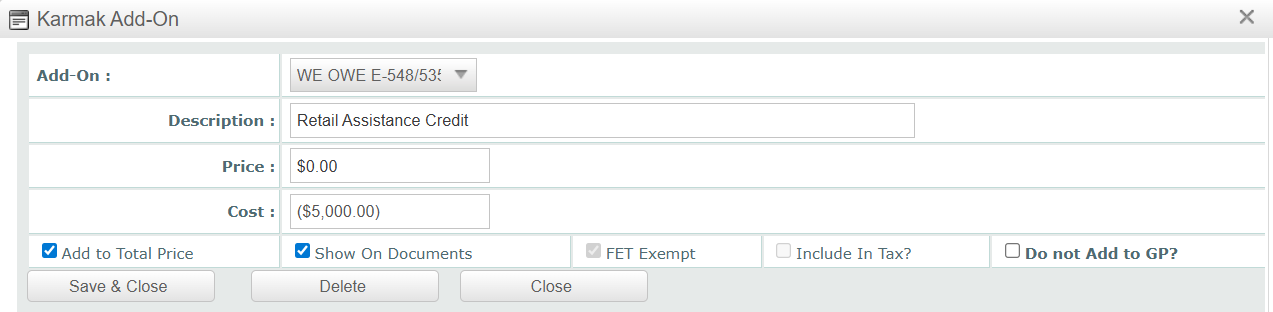
Final Steps:
Click Save & Close.
The Misc Items will now be converted to add-ons and will turn green.
** IMPORTANT GUIDELINES FOR ADD-ONS **
Add-ons should typically only have an amount in the PRICE column.
The sole exception is when a vendor credit is anticipated, in which case the amount is entered in the COST field as a negative number.
NEVER have amounts in both the PRICE and COST fields simultaneously.