
Resetting a Power BI User's Password
Done from the Microsoft 365 admin center, not Power BI itself
Power BI doesn't have its own password. It signs in with the same Microsoft 365 / Entra ID account someone uses for email, Teams, and everything else in the tenant. So "resetting a Power BI password" really means resetting that person's Microsoft 365 account password — done from the Microsoft 365 admin center, and it takes effect everywhere they sign in, Power BI included.
Who can do this
You need to be a Password administrator (or a higher role like User administrator or Global administrator) in the tenant. If the Reset password button is greyed out or missing when you get to a user, that's usually why.
Step 1 — Find the user
Go to the Microsoft 365 admin center and sign in with an admin account.
In the left navigation, go to Users → Active users.
Search for the person by name, then check the box next to their row to select them.
Select Reset password from the toolbar.
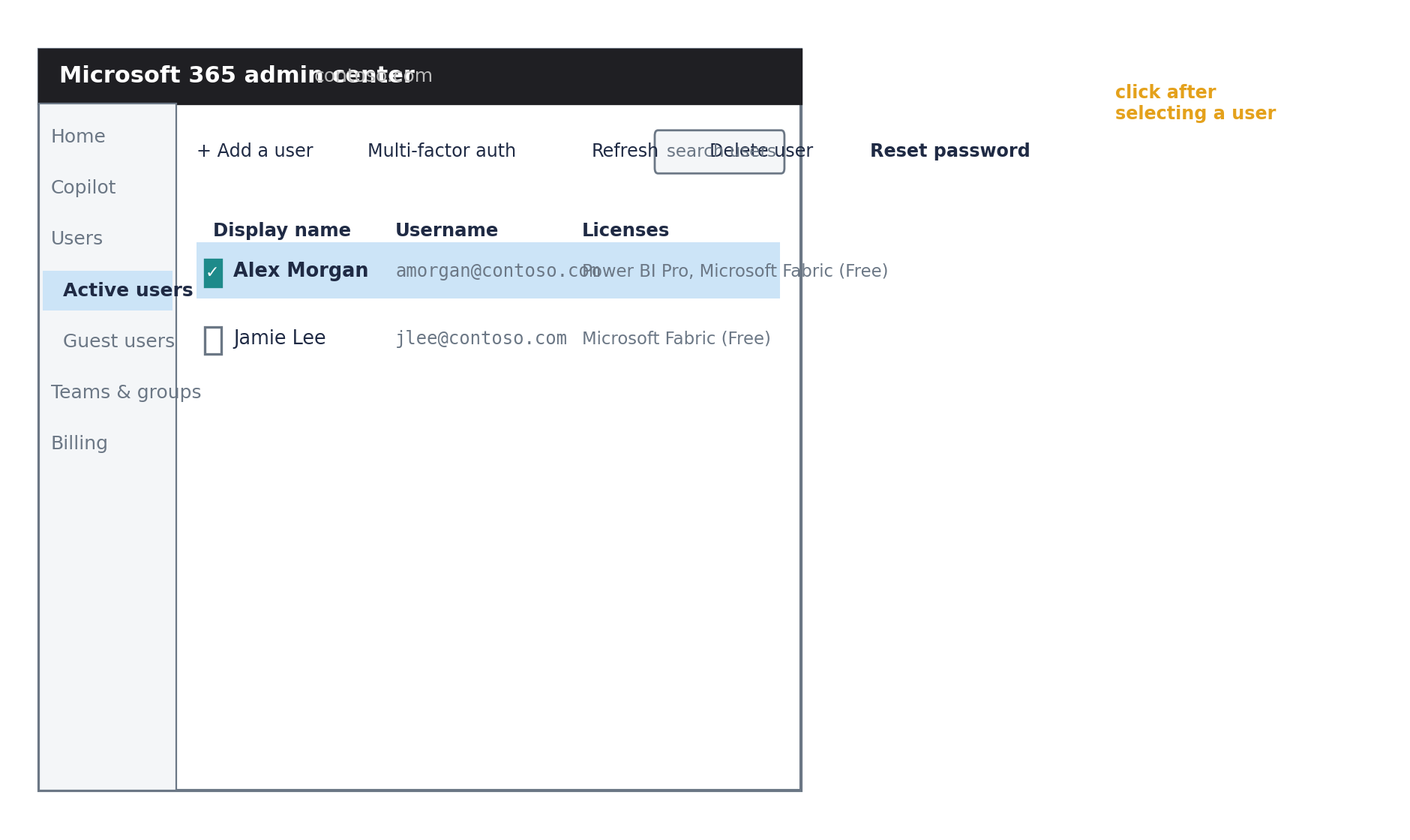
Figure 1. Active users — select the person, then Reset password.
Step 2 — Choose how the new password is created
Auto-generate password — Microsoft creates a random secure password. This is the simplest option and what most admins default to.
Let me create the password — type a specific one yourself, if you need to hand it to the user in person right away.
Leave "Require this user to change their password when they first sign in" checked. This means the temporary password only works once — the user is forced to set their own on the next sign-in, so you're not left holding their long-term password.
Select Reset password to confirm.
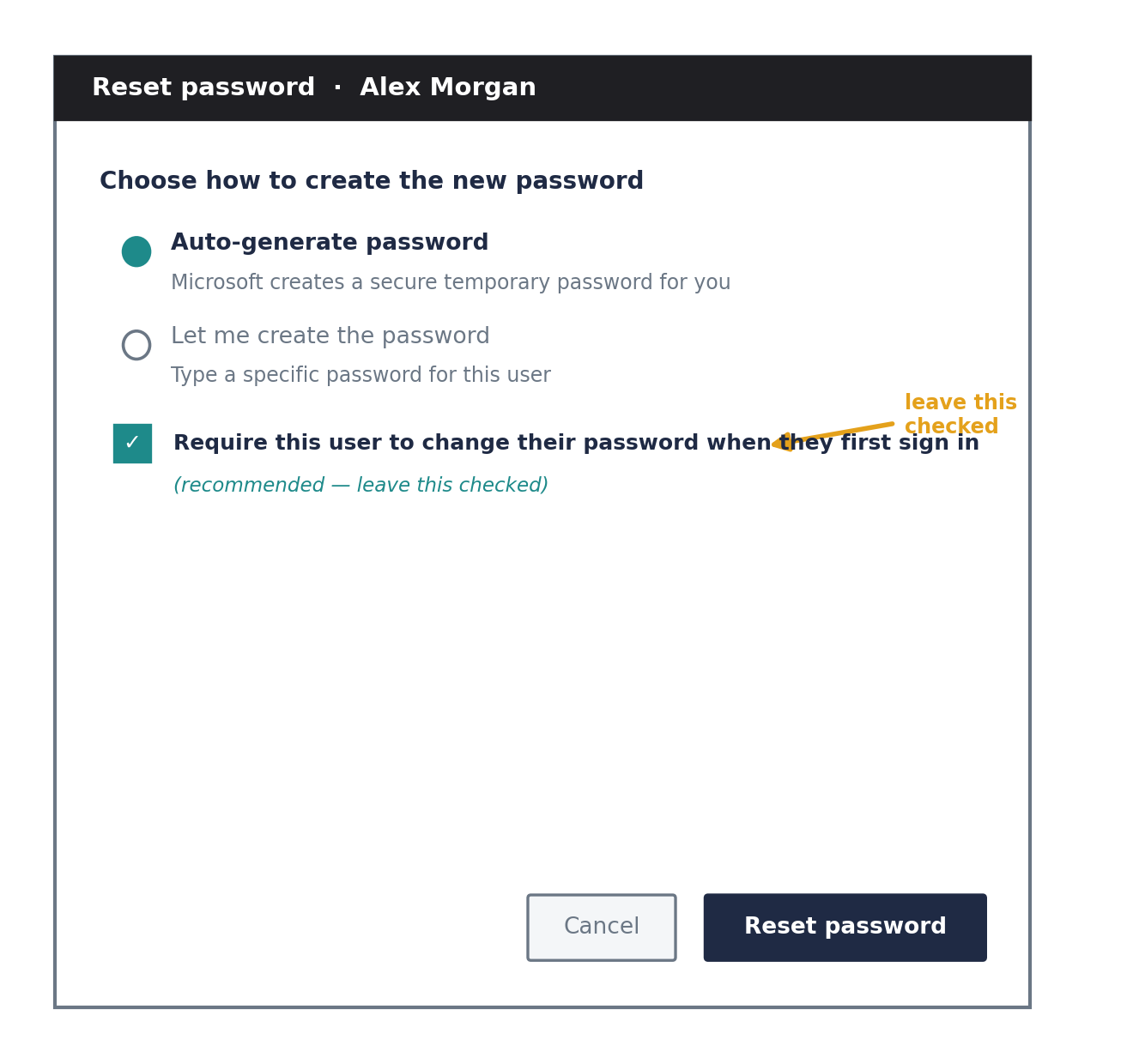
Figure 2. Choosing auto-generated vs. custom, and keeping the forced-change option on.
Step 3 — Share the temporary password securely
The reset confirmation shows the temporary password once.
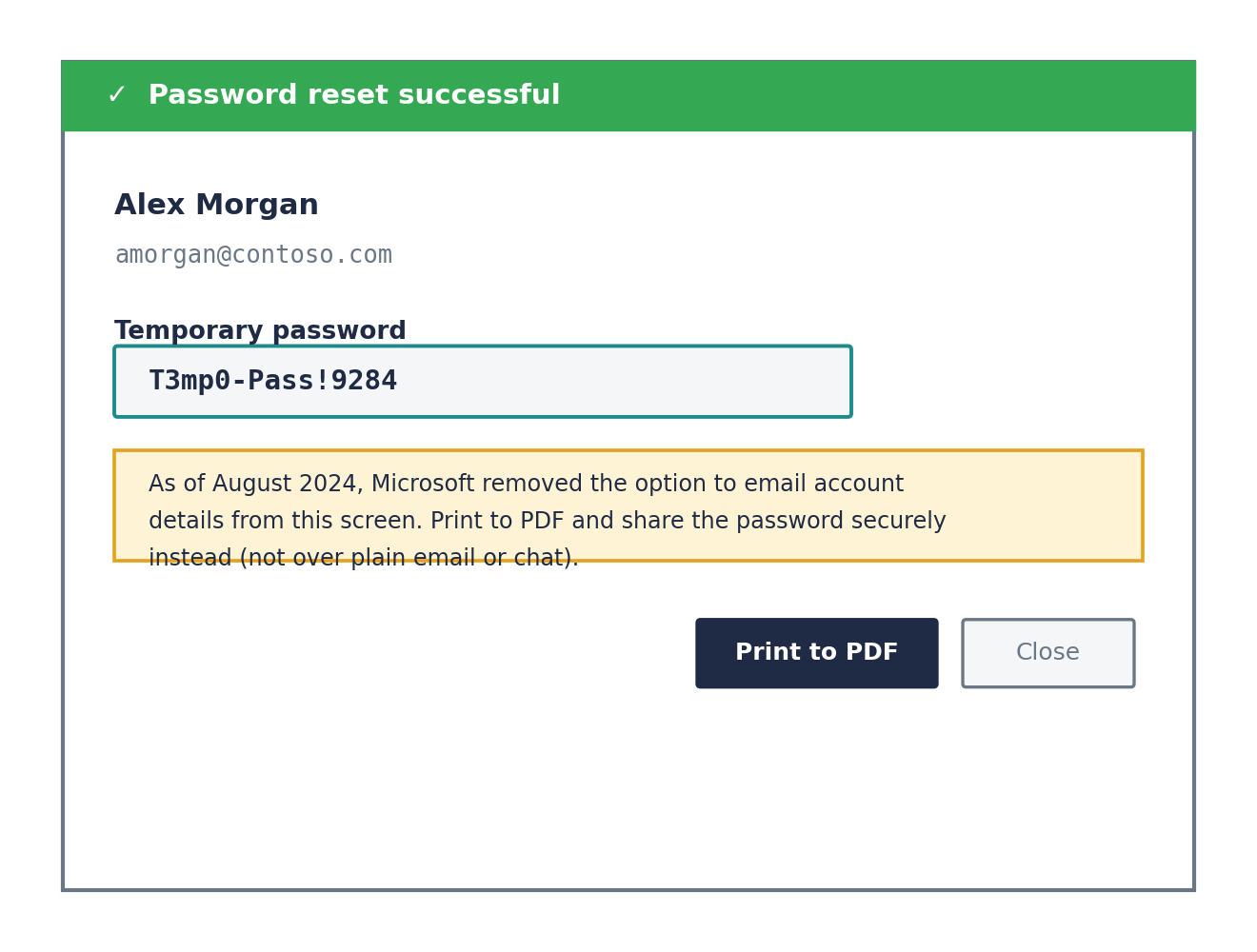
Figure 3. The temporary password is shown once on this confirmation screen.
What the user sees on their end
The next time they try to sign in — to Power BI, Outlook, Teams, anywhere — they'll be prompted for the temporary password, then immediately asked to set a new one of their own. Once that's done, they're back into everything, including Power BI, with no separate step needed on the Power BI side.
If they still can't get into Power BI after this
Give it a few minutes — password changes can take a short time to propagate across all Microsoft 365 services.
Confirm they're using the right sign-in address — it's the Username shown on the Active users page, which isn't always the same as their display name or personal email.
If sign-in still fails afterward, that's more likely a licensing or account-status issue than a password issue — worth checking their Licenses column back on the Active users page.
For a business with more than a handful of people needing resets, or for users who don't want to wait on IT, it's worth turning on self-service password reset (Settings → Org settings → Security & privacy) so people can reset their own passwords with MFA instead of filing a ticket every time.