
Connecting Google Sheets to Power BI
No gateway required
If part of your report data lives in a Google Sheet, connecting it works differently than SQL Server. There's no gateway involved at all, because Google Sheets already lives in the cloud — Power BI Service can reach it directly. This guide covers connecting from Desktop, publishing, and getting scheduled refresh working in the service.
Why there's no gateway here
The gateway exists to solve one specific problem: letting Power BI's cloud service reach into your local network to grab data from something like an on-premises SQL Server. Google Sheets doesn't have that problem, since it's hosted by Google, not sitting inside your company's network. Power BI Service talks to it directly over the internet, the same way your browser does. What it needs instead of a gateway is a saved sign-in — an OAuth credential that lets Power BI refresh the sheet without you being there to click through the login every time.
Step 1 — Connect to the sheet in Power BI Desktop
On the Home tab, select Get data.
Search for Google Sheets and select it.
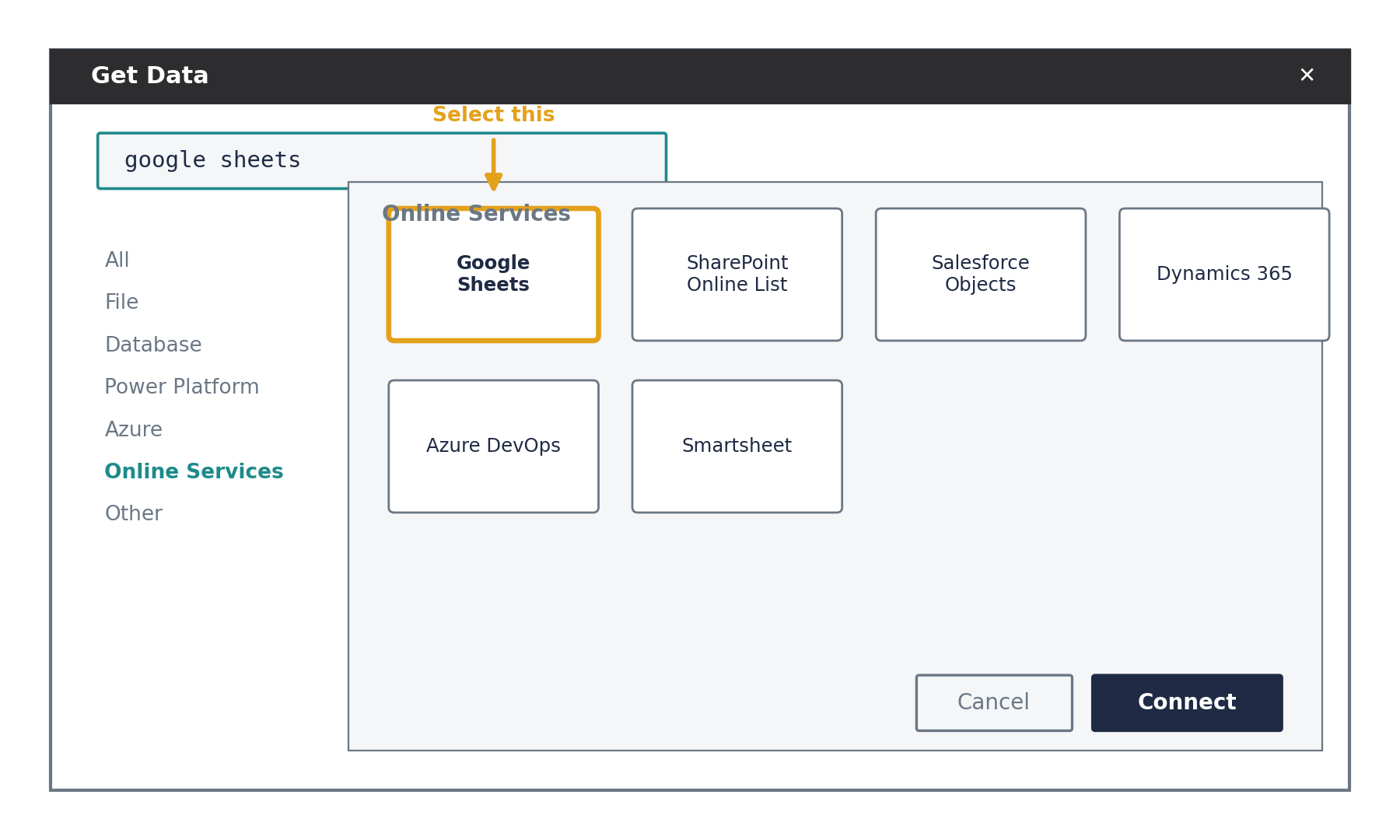
Figure 1. Get Data → search Google Sheets under Online Services.
Paste the URL of the Google Sheet — copy it straight from your browser's address bar while viewing the sheet.
Click Sign in, choose your Google account, and approve the permissions Power BI asks for.
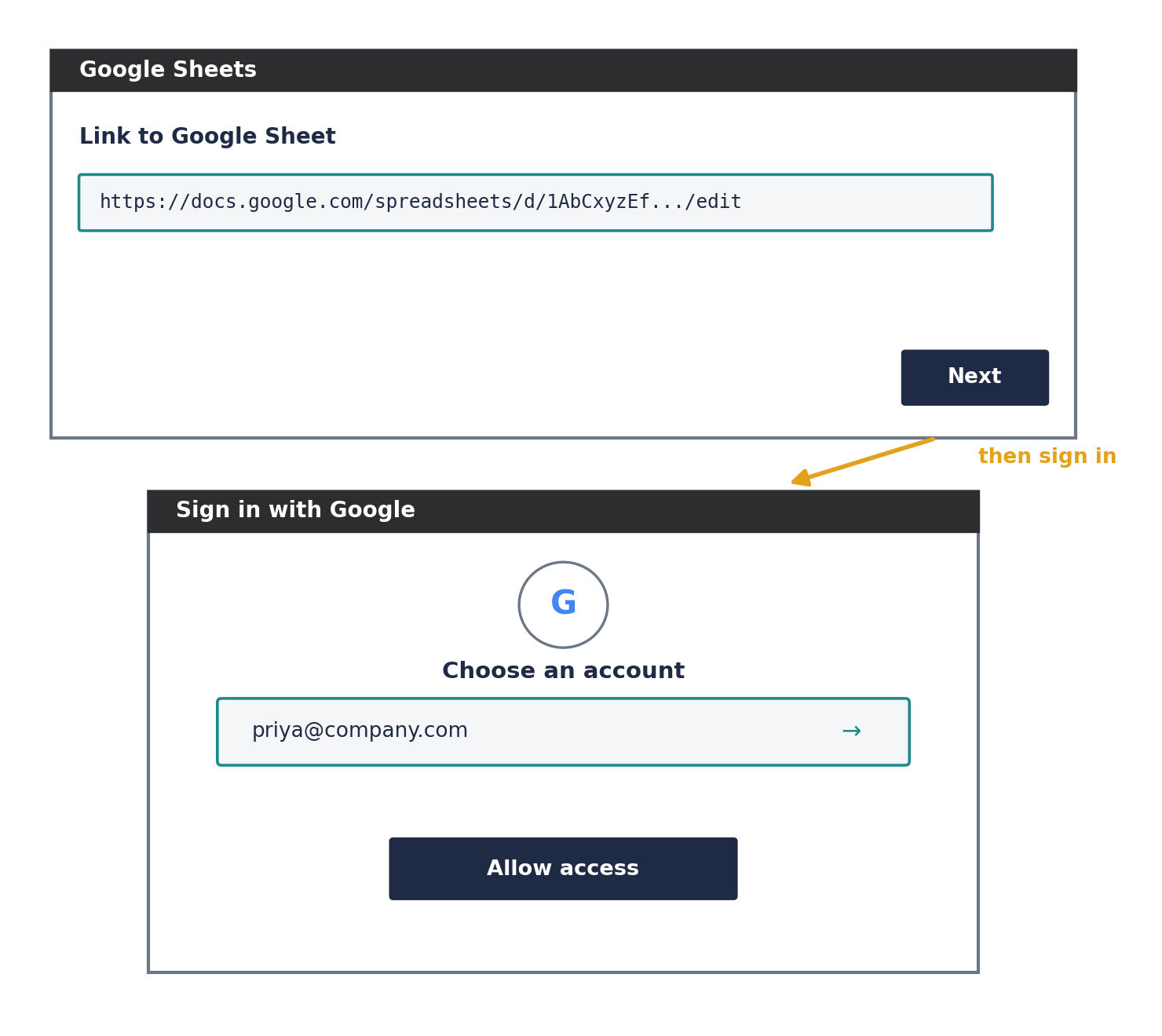
Figure 2. Paste the sheet URL, then sign in and approve access.
Step 2 — Pick your data and load it
In the Navigator window, check the box next to the sheet tab(s) you need — a spreadsheet file can have several tabs, and each one shows up separately here.
Use the preview pane on the right to confirm it's the right data.
Click Transform Data if you need to clean anything up in Power Query first, or Load to bring it in as-is.
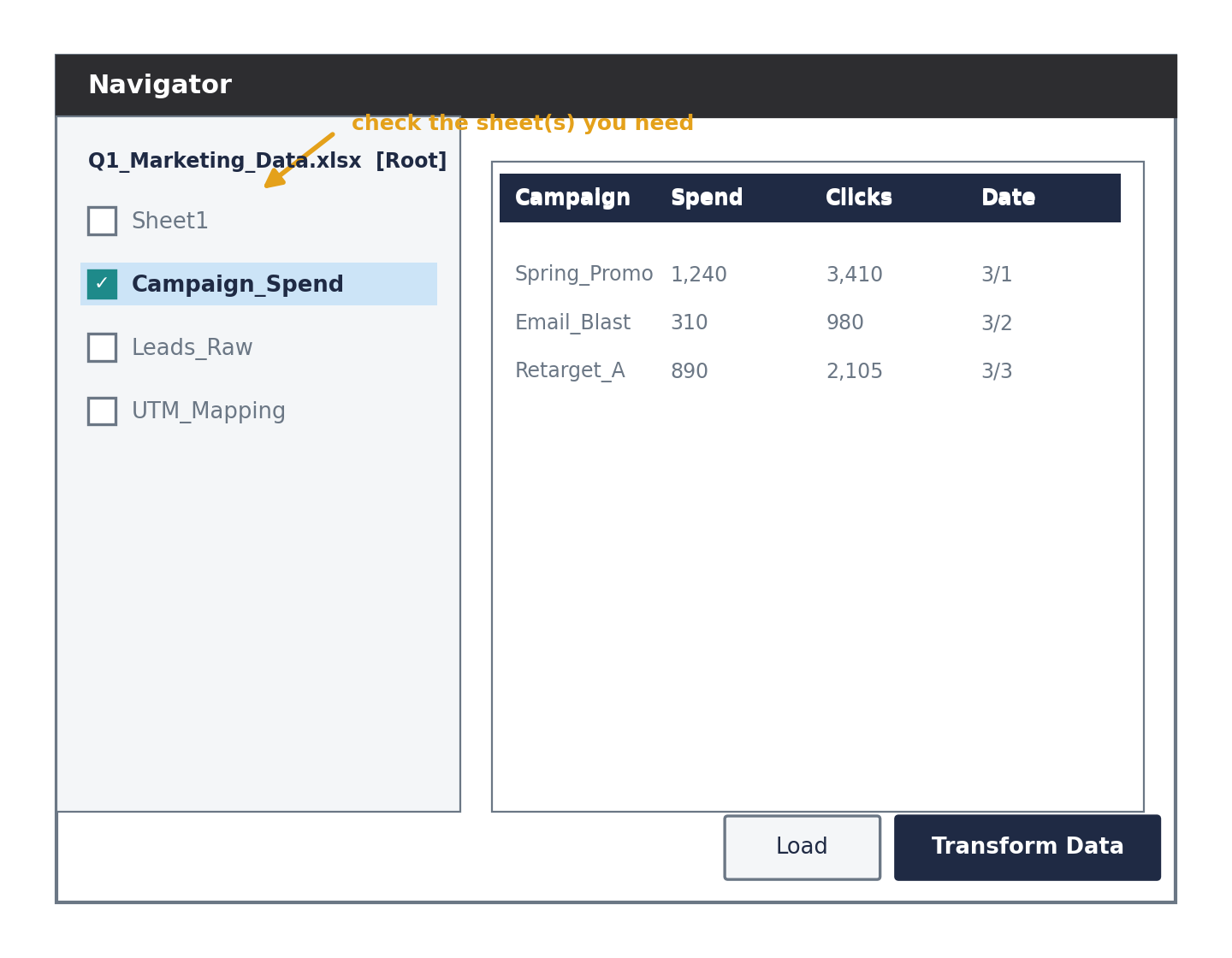
Figure 3. Navigator — select the sheet tab(s), then Load or Transform Data.
Build your visuals, then publish the report to your workspace like normal.
Step 3 — Set up scheduled refresh in the service
This is where people expect to see a gateway option and don't find one — that's expected here.
Go to your workspace, find the semantic model, and open Settings.
Under Data source credentials, you'll see the Google Sheets connection listed.
If it says the credentials need attention, click Edit credentials and sign in with the same Google account again.
Under Scheduled refresh, turn the toggle on and set your frequency and time.
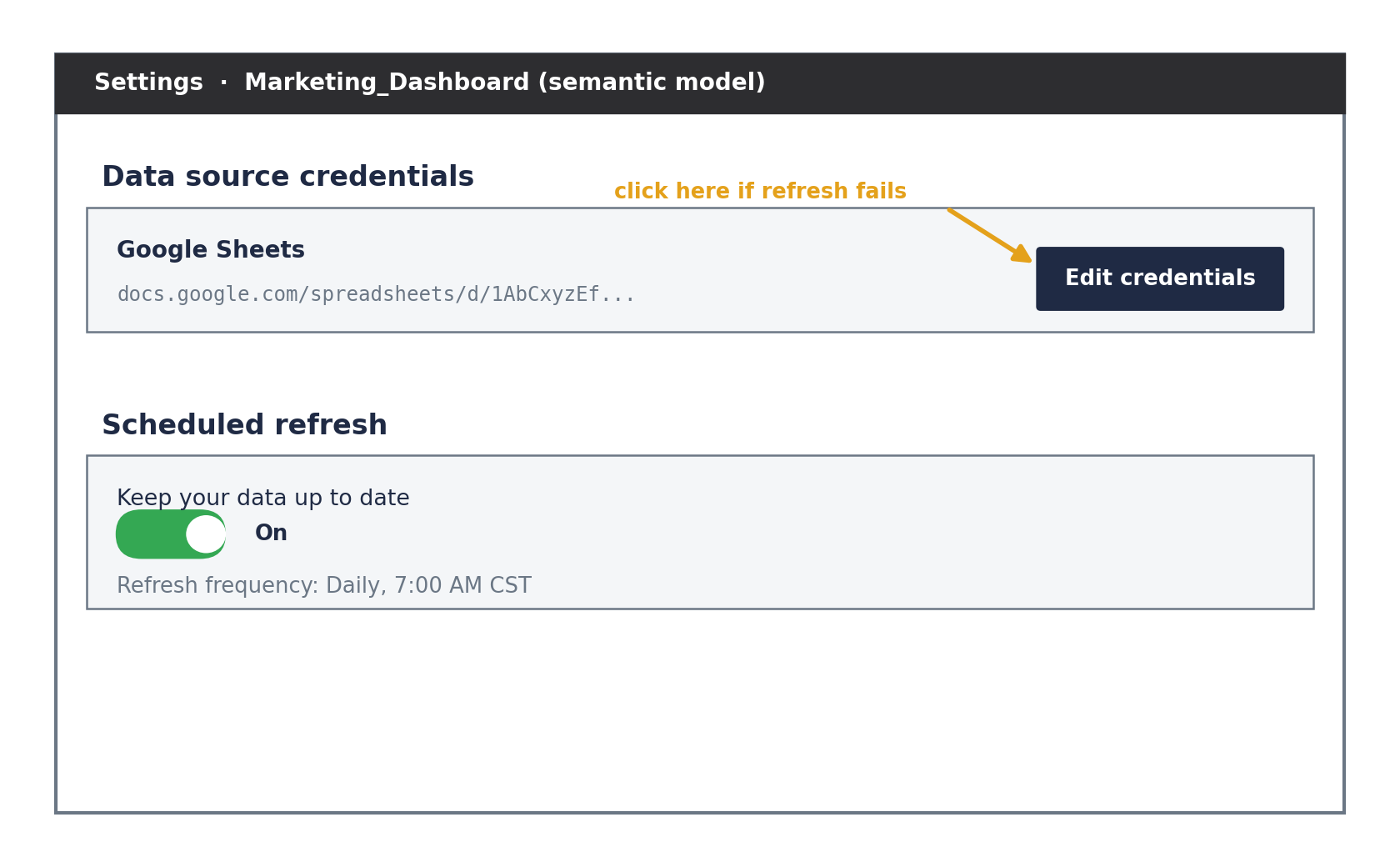
Figure 4. Data source credentials and scheduled refresh — both live in the semantic model's Settings page.
Google Sheets vs. SQL Server, side by side
SQL Server: on-premises, needs a gateway installed on a machine in your network, refresh uses stored service-account credentials.
Google Sheets: cloud-hosted, no gateway, refresh uses a saved Google sign-in (OAuth) instead of a username/password.
Both still show up in the same Connections list in Power BI Service — the difference is just what's in the Gateway column.
One thing worth keeping in mind for reporting on top of Google Sheets: it's a much less controlled data source than a database — there's no schema enforcement, so a renamed column or a shifted row in the sheet can break a refresh in a way SQL Server wouldn't. Worth a quick check if a report using a sheet suddenly looks off after refresh.