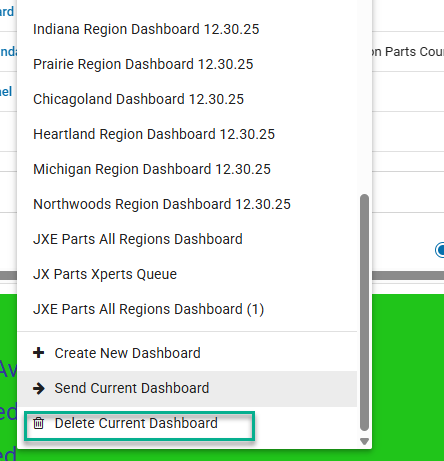
The custom dashboards for real-time RingCX data do not automatically update when new users are added to a queue.
This needs to be done manually, and then the dashboard needs to be re-shared with all users who would need access.
- Log into RingCX Analytics Portal
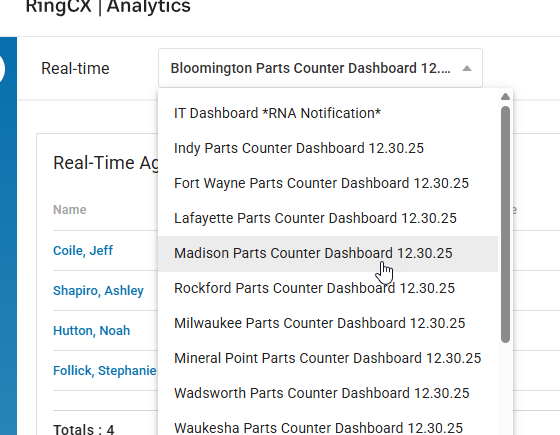
- Open the drop-down menu at the top and select the dashboard you're wanting to update.
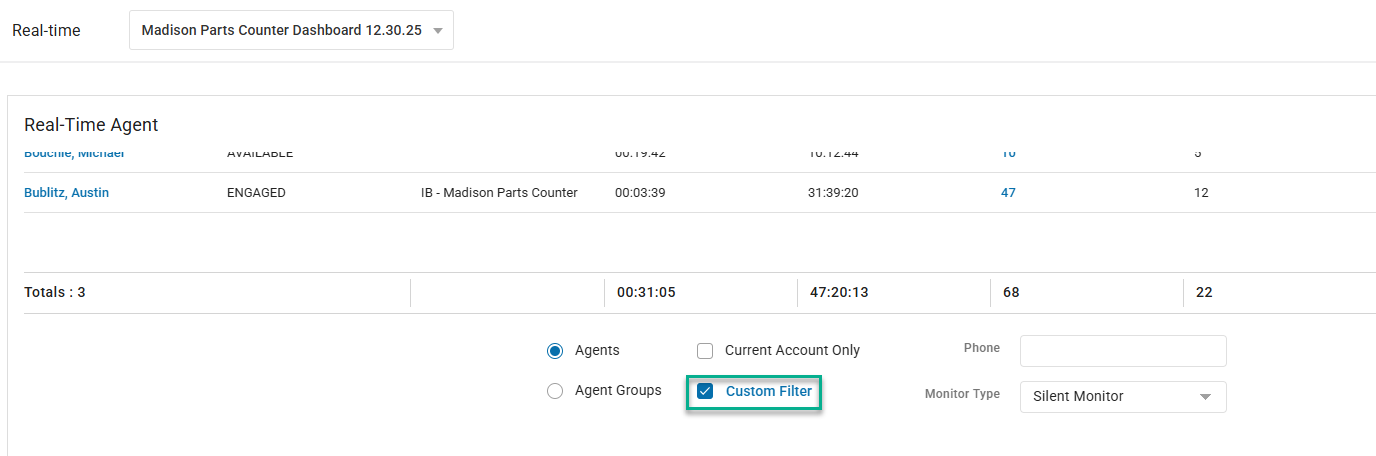
- When a new user is added, the only widget that needs to be updated is the top one (Real-Time Agent). All other widgets show statistics for the entire queue, and not individual users. Scroll down to the bottom of the Real-Time Agent widget and click on Custom Filter.
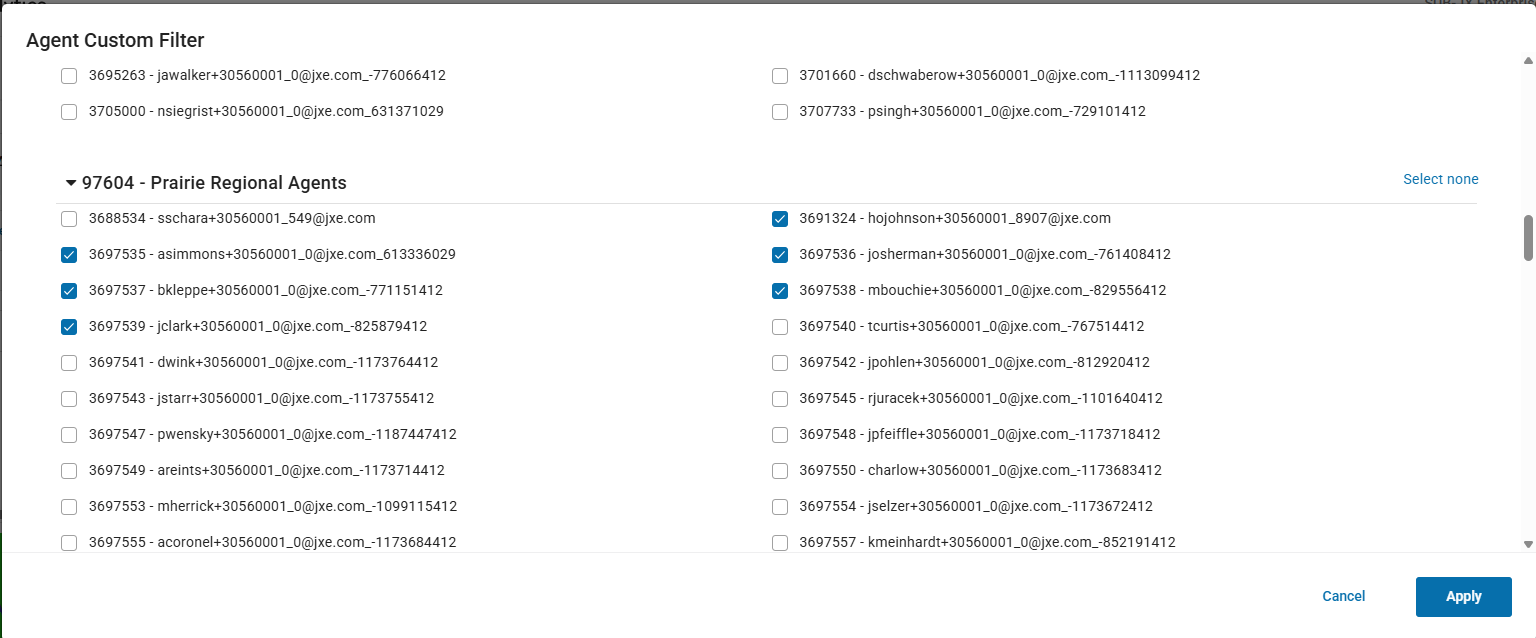
- Scroll down to the correct region, and check the box next to the username of any agents you're adding, then Apply.
- So all users can see this is the most recent version, rename the widget to [Branch] Parts Counter Dashboard [Today's Date]. Click Edit Widgets, update the name, then Save it.

- Once you've verified all information is correct, open the drop-down at the top again, and click Send Current Dashboard to share with the appropriate people.
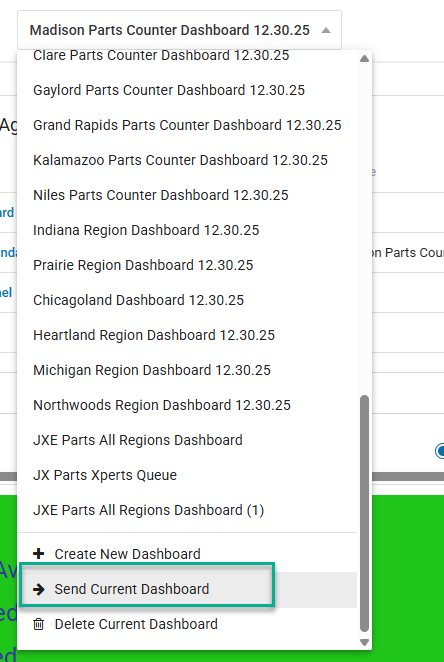
Users to send the dashboard to:
- Regional Vice President
- Branch's Operations manager
- Branch's Parts Manager and Assistant Parts Manager if applicable
- Chelsea Hoffman
- Dan Beaver
7. Open the same drop-down again and go back to any previous versions of the dashboard you edited, and delete them. This is to make sure you only have the most up-to-date dashboards available.